Cost Centres
Overview
Managing revenue and expenses effectively is crucial for businesses of all sizes. One way to gain better insight into your financials is through the use of divisions/branches and cost centres. While smaller firms may only use a default division, larger firms often segment their operations across multiple divisions and cost centres to track performance in more detail.
This guide will explain what cost centres are, why they matter, and how to create, manage, and use them to produce detailed financial reports.
TABLE OF CONTENTS
- Overview
- What are Cost Centres?
- Why Use Cost Centres?
- Creating a New Cost Centre Tag
- Editing/Deactivating/Reactivating a Tag
- Applying Cost Centre Tags to Transactions
- Applying Tags: Step-by-Step
- Generating a Profit & Loss Statement by Cost Centre
- Tips for Effective Use of Cost Centres
What are Cost Centres?
A cost centre is a way to allocate transactions—both income and expenses—within your organisation. Think of it as a secondary tagging system for financial transactions:
- Divisions: Usually represent large organisational segments like branch offices or regions.
- Cost Centres: Can represent departments, teams, projects, or even marketing campaigns.
By assigning transactions to cost centres, you can generate reports like Profit & Loss statements that show the financial performance of individual teams or branches for non-matter related transactions.
Cost centres are customisable ad hoc tags in your system. Once created, they can be applied across various transactions to provide a granular view of your financials.
Why Use Cost Centres?
- Enhanced Visibility: Understand which teams or projects are driving revenue or costs.
- Better Budgeting: Allocate resources more accurately based on departmental performance.
- Improved Reporting: Segment financial reports for better decision-making at the branch, team, or project level.
Creating a New Cost Centre Tag
To set up a new cost centre:
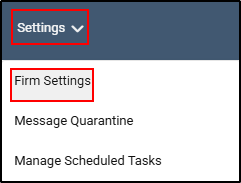
1. Go to Settings → Firm Settings from the navigation menu.
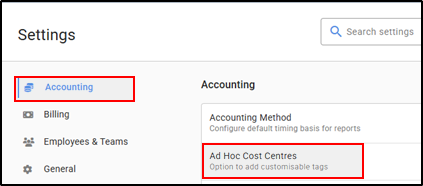
2.Select Accounting → Ad Hoc Cost Centres.
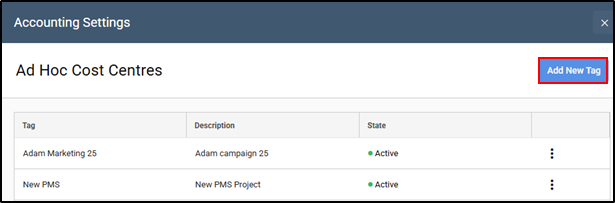
3.Click Add New Tag in the top-right corner.
4.Enter a unique tag name and an optional description.
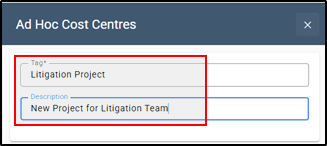
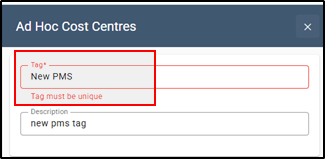
If the tag already exists, a warning will appear: “Tag must be unique.”
5. Click Save.

Make your tag names clear and descriptive (e.g., "Marketing Campaign P1" or "London Office - IT Dept") to make reporting easier later. Editing/Deactivating/Reactivating a Tag
- Navigate to Settings → Firm Settings → Accounting → Ad Hoc Cost Centres.
- Locate the tag you want to change.
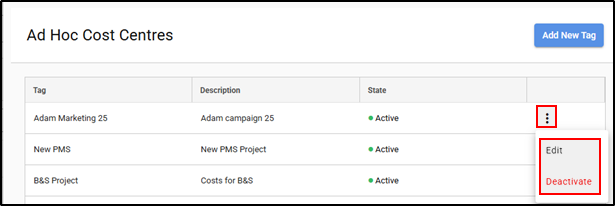
- Click the ellipsis (…) on the right-hand side of the tag.
- Choose Edit to make changes or Deactivate to remove the tag from use.
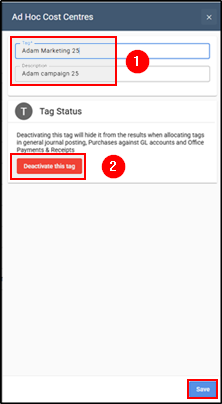
- For edits, make your changes and click Save.
For deactivation, confirm by clicking Deactivate this tag.
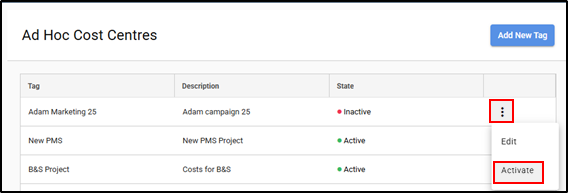
- To reactivate, locate the tag, click on the ellipsis (...) menu then choose Activate.
Applying Cost Centre Tags to Transactions
Once created, cost centre tags can be applied across multiple transaction types. These include:
- Office Payments
- Office Receipts
- Purchases
- General journal postings
Applying Tags: Step-by-Step
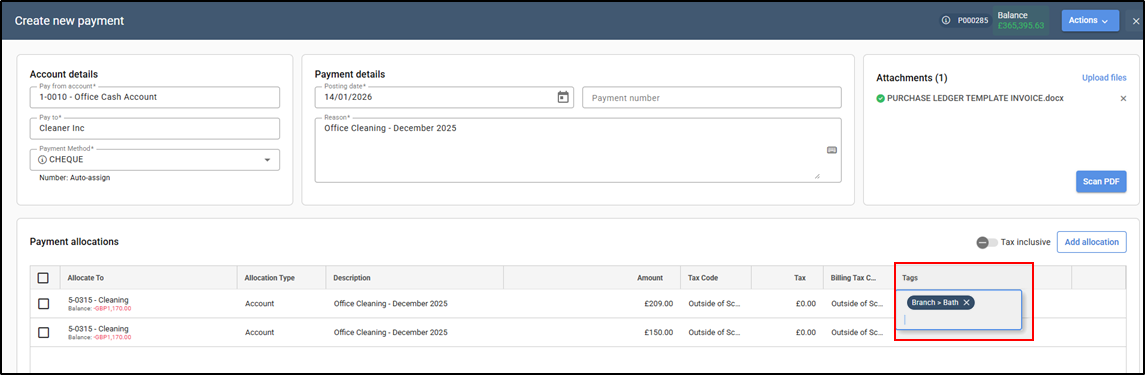
1. Office Payments
- When creating an Office Payment, navigate to the payment allocations section.
- Complete payment details.
- In the Tags column of the allocation grid, type and select the tag(s).
- Repeat for additional allocation lines if needed.
- Click Post.
2. Office Receipts
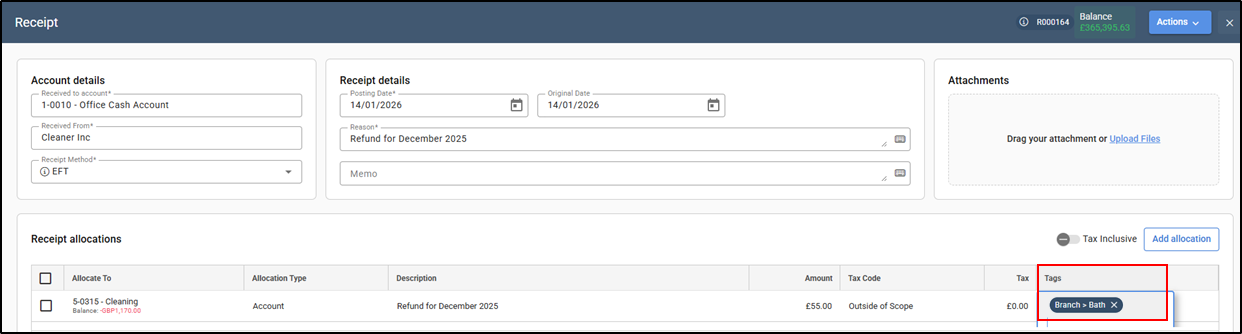
- When creating an Office Receipt, navigate to the receipt allocations section.
- Complete receipt details.
- In the Tags column of the allocation grid, type and select the tag(s).
- Repeat for additional allocation lines, then click Post.
3. Purchases
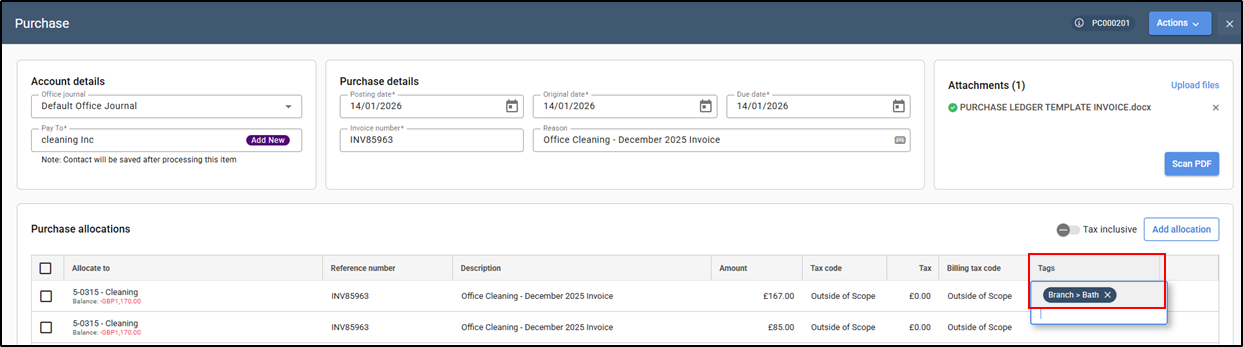
- When recording a Purchase, navigate to the purchase allocations section.
- Apply tags in the Tags column of the allocation grid.
- Repeat as needed and click Post.
4. General Ledger Journal Entries
- When posting a General Journal, navigate to the Accounts section.
- Complete transaction details.
- Use the Add button to insert multiple journal lines.
- Apply tags in the Tags column.
- Click Post.

Note: Multiple tags can be applied to a single transaction (e.g., Division + Team + Ad Hoc Cost Centre). Tags are only available in the "Tags" column when the "Allocate To" field is a General Ledger Account (non-matter related transactions).
Generating a Profit & Loss Statement by Cost Centre
You can segment your Profit & Loss (P&L) statement to show results by division and cost centre:
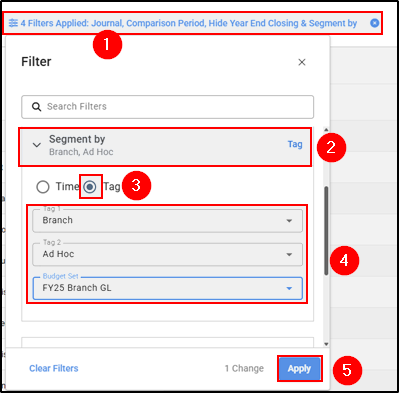
- Go to Reports → Financial → Profit & Loss.
- Click the filter at the top of the screen, select Segment by then Tag.
- Choose the tags for segmentation, then Click Apply.
Tag 1: Branch
Tag 2: Cost Centre - Ad Hoc Tag
Budget Set: Optional, if you want to compare against budgets
as cost centres are created as "Ad Hoc Tags", this is the name of the corresponding segmentation option within the drop-down menu in the "Segment by" filter.
Result: Your P&L report will now show financial performance broken down by branch and cost centre, allowing for detailed insights into revenue and expenses across your organisation.Tips for Effective Use of Cost Centres
- Use consistent naming conventions to avoid confusion.
- Review cost centres periodically to ensure they align with organisational changes.
- Train your team on the proper use of tags to maintain accurate reporting.
- Combine with budgeting features to monitor performance against targets.