Move Time Items in Bulk
Overview
Multiple Time Items can be transferred from one matter to another in a single process.
How to move work items
1. Navigate to 'Time Items' via the top menu.

2. Apply the relevant filters to the time items listing, this includes adding the 'State' filter which allows you to view the billing status of the time items. Only Pending, Finalised or Non-billable entries can be moved to another matter.
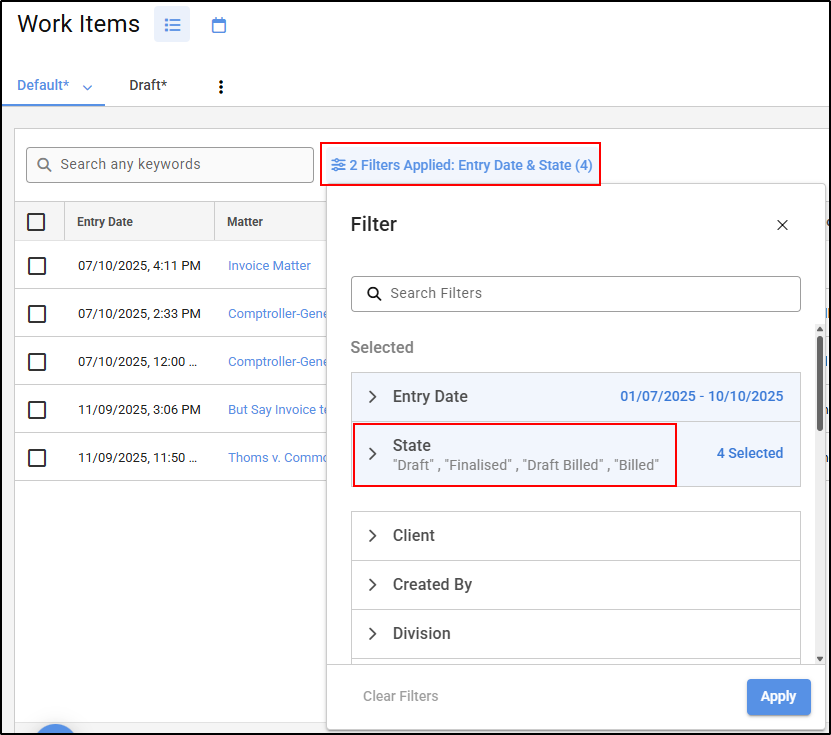
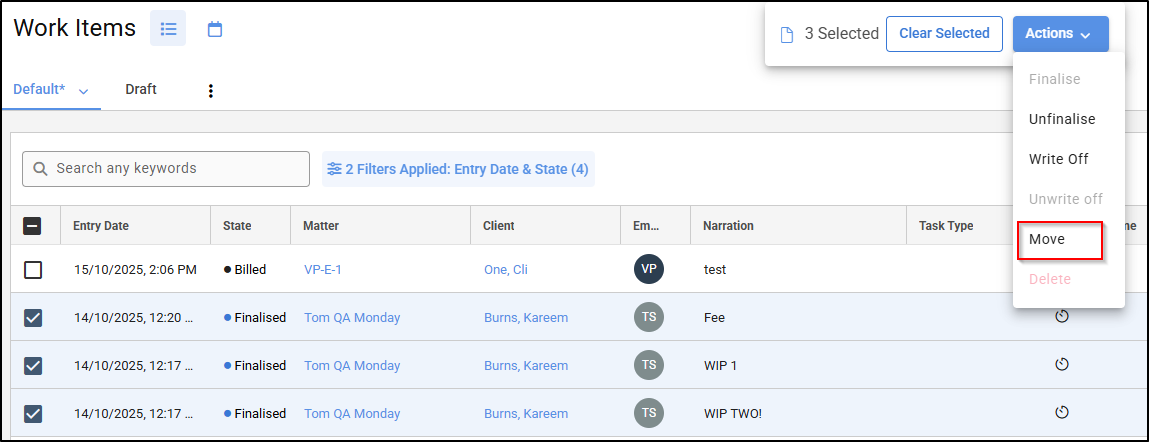
3. Select the time items that you wish to be moved from one matter to another matter. To do so, click on the tick box located on the left of the time item entries.

4. Once you selected the time items to be moved, click Action and then Move located at the top of the screen.
5. The Time work items window will appear.

6. Enter the matter number you wish to have your time item/s moved to. Then click Confirm.

7. Your time items have now been successfully moved to the nominated matter.
Note: If you need to move a time item which is included in a draft bill , the item must first be removed from the draft invoice that it has been included on.
Audit trail of moved time items
Once a time item has been moved from one matter to another matter, an audit trail will be logged within each matter affected. To view this, navigate to the matter and click the Settings Cog in the top right corner and select Recent Activity.

The Recent Activity of the matter the time items have been moved From will show the time item was Unfinalised and Moved.
On the Matter where the time item has been moved To, it will display as Moved and then Finalised.
