Draft - accept partially created objects
TABLE OF CONTENTS
Overview
The Draft feature allows partially created objects—such as Clients, Matters, Time Entries, Employees, and Suppliers - that originate from an integrated system and are in the Opening state to be treated as drafts. These items will not become active until an authorised user completes the required information.
Dashboard Widget
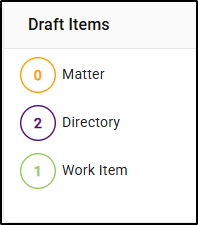
A new widget can be added to any dashboard (it is not enabled by default). This widget displays all draft items, and it is fully interactive—clicking any number will take you directly to the corresponding draft item.
Draft Tabs
Default Draft tabs have been added in the following areas:
Time Entries
Matters
Directory
Time Entries Draft Tab
1. A default Draft tab is now available on the global Time Entries screen. If needed, it can be disabled, cloned, or set as your preferred view.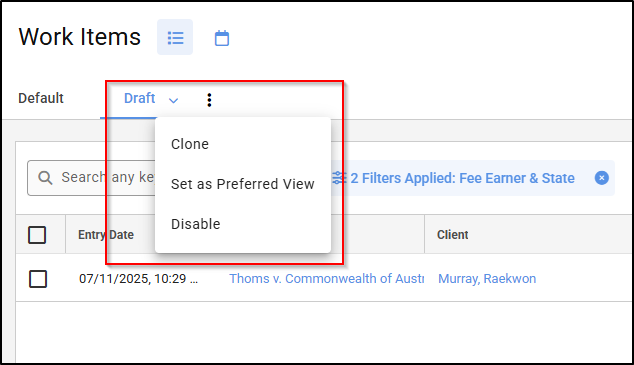
2. When a time entry is created in an integrated system, it will appear as a draft and be listed under the Draft tab.
To the right of each draft time entry, there is an option to update the item.

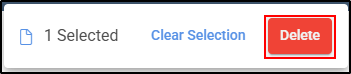
3.If you do not want to update this time entry, you can delete it by selecting the checkbox and choosing Delete from the Actions menu.
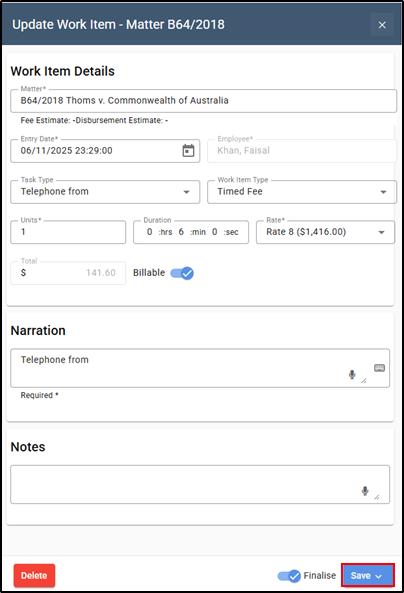
4.If you choose to update the item, the Update Time Entry screen will appear. Once all required fields have been completed, you can save the time entry.
5. A notification will briefly show at the top centre of your screen and this will then disappear from the draft tab on the time entry screen.

Matters Draft Tab
1. A default Draft tab is now available on the global Matters screen. If needed, it can be disabled, cloned, or set as your preferred view.
2. When a matter is created in an integrated system, it will appear as a draft and be listed under the Draft tab.
To the right of each draft matter, there is an option to update the item.

3.If you do not want to update the matter, you can delete it by selecting the checkbox and choosing Delete from the Actions menu.
4. If you choose to update the matter, the Update Draft Matter screen will appear. Once all required fields have been completed, you can save the matter.
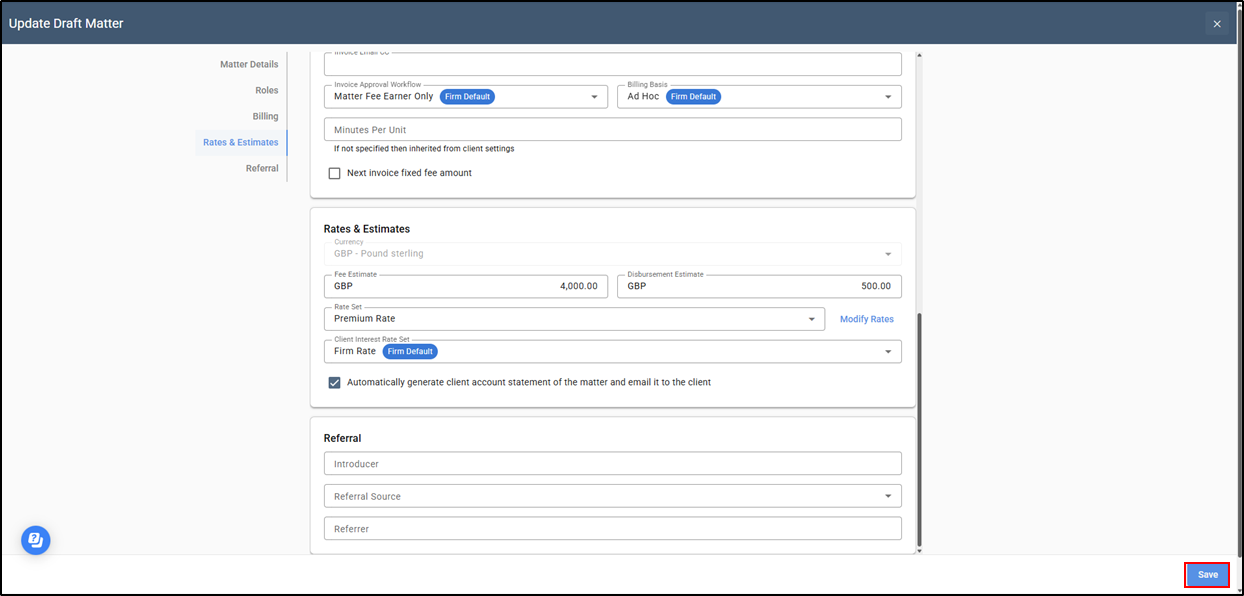
5. A notification will briefly show at the top centre of your screen and the matter will then disappear from the draft tab on the Matters screen.

Directory Draft Tab
1. A default Draft tab is now available on the Directory screen. If needed, it can be disabled, cloned, or set as your preferred view by using the drop-down menu on Draft. The types of entities that could be draft within the Directory could be Clients, Suppliers & Employees.
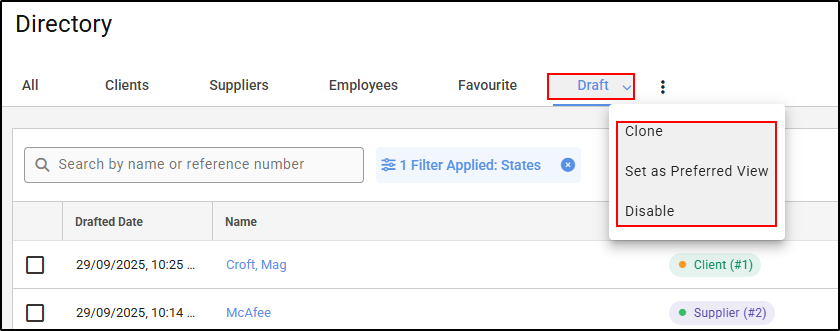
2. When an entity is created in an integrated system, it will appear as a draft and be listed under the Draft tab.
To the right of each draft entity item, there is an option to update or delete the item.

3. If you do not want to update this entity, you can delete it by selecting the checkbox and choosing Delete from the Actions menu.
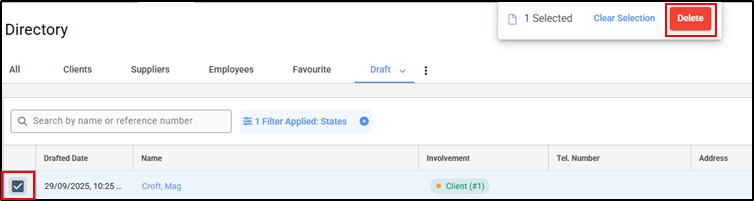
4. You can also view the status of an entity—for example, a client—by opening the client card. You will see a Complete Setup button, which will take you to the same screen where you can update that entity
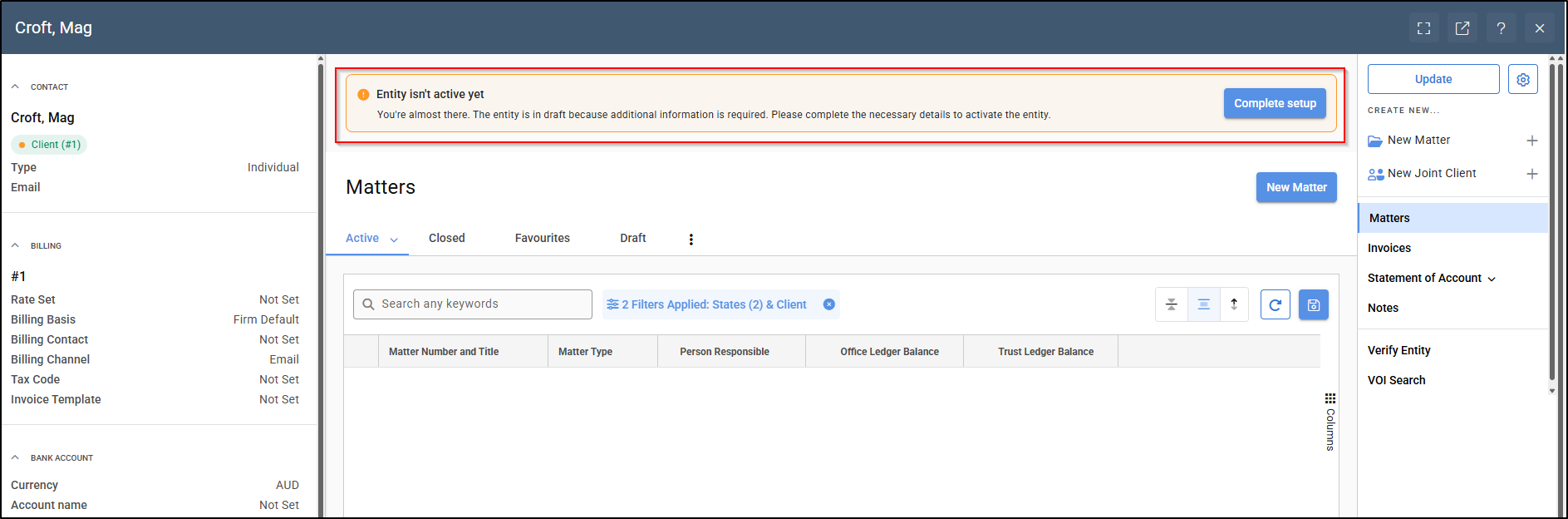
5. If you choose to update or complete the setup, the update screen will appear. Enter all required fields to finalise the setup of the entity. You may select Save as Draft if further changes are still needed, or choose Save to complete the update process.
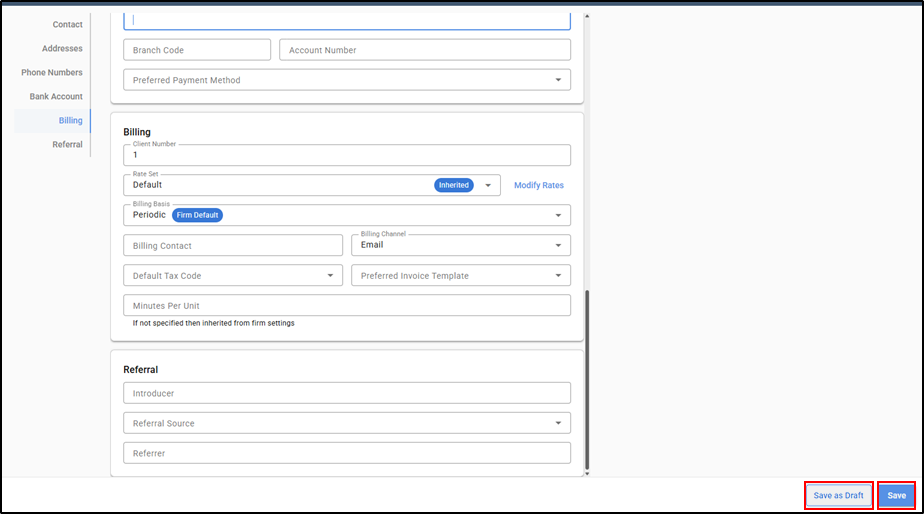
6. If all required fields have been completed and you select Save, the setup process will be finalised. A brief notification will appear at the top centre of your screen confirming a successful update, and the item will then be removed from the Draft items area.

Note: You will see the same inactive messages on a Supplier or Employee card. Although the required fields may differ when you click Update, the process remains the same.