Duplicate/Clone Time Entry
Overview
Time entries can be duplicated/cloned from one entry to create a new time entry. The ability to clone a time entry provides the user with an efficient option of copying details from an existing time entry instead of having to re-type and re-select details such as matter number, narration and rate.
There are 2 ways of duplicating a time entry:
1. Duplicate/clone a time entry from the Time screen
2. Duplicate/clone a time entry from 'Today's Time', being your own entered time for the day so far (whether it be pending or finalised).
How to duplicate/clone a time entry from the time screen
1. In the Navigation Menu, select Time.
Follow the same steps where the Time screen is being accessed from a Matter > Time Entry +

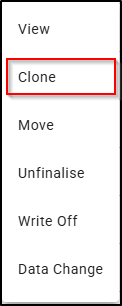
2. Locate the time item you would like to clone, then select the ellipsis located to the right of the time entry.

3. Select Clone.
4. A New Time Entry screen will open containing the same details of the cloned time entry (Matter, Employee, Activity, Time Entry Type, Rate, Narration, and Billable field), with the exception of the the 'Entry Date' and 'Units' fields.
The entry date and time will automatically update to the current date and time and the units field will populate as'1' by default. Ensure updates are made to these two fields where necessary.
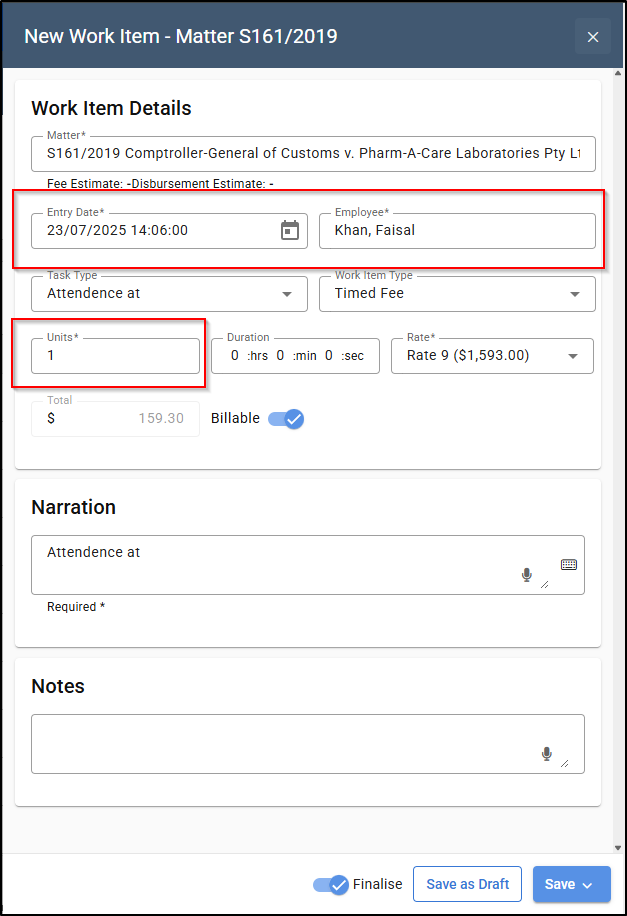
For staff members cloning a time entry which needs to be for another employee, ensure you update the 'Employee' field set to the relevant employee (i.e. Fee Earner).5. Once you have updated the Units field, the system will automatically update the End date/time and Duration in accordance with the number of units. Similarly, if you update the End Date/time, the system will automatically calculate the Units and Duration.
For the End Date to be visible, the option 'Allow editing end times on time entries' must be selected in the Billing Defaults screen in Firm Settings.
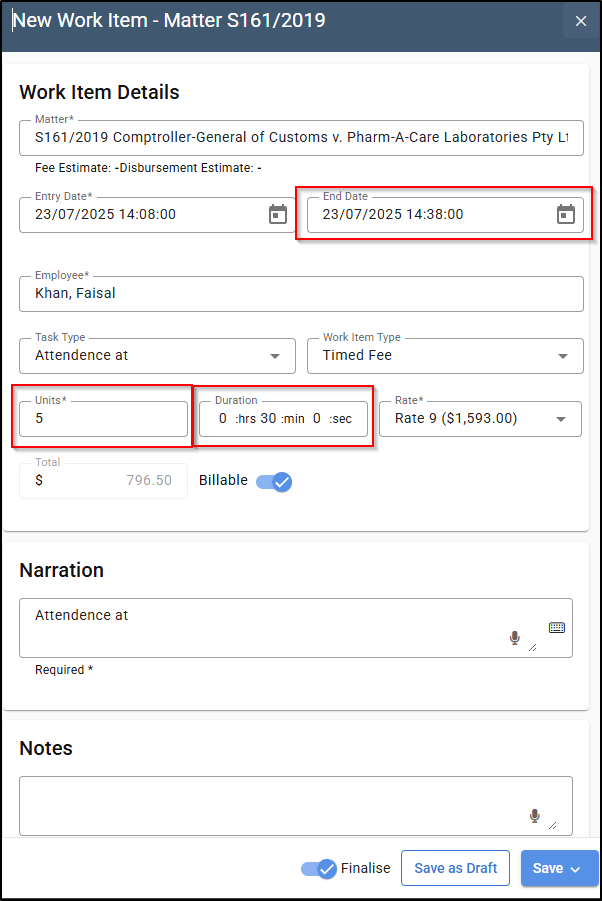
6. Save the time entry when you have updated the necessary fields. By selecting Save & New, the Date and Employee will copy to the new time entry.
How to duplicate/clone a time entry from 'Today's Time Entries'
1. Navigate to your current day's time entries, by selecting the timer icon located at the top right of your screen.

2. From Today's Time Items select the time entry you would like to clone by selecting the ellipsis button to the right of the relevant time entry, then select 'Clone'.

The cloned time entry will appear under 'Todays Time Entries' as Active.
3. Save and finalise the cloned entry once the necessary fields have been updated.
For users who actively use the 'timer', the timer will automatically start running once you have chosen to clone a time entry.