Create, Edit and Write Off Time Items
Overview
This Guide covers how to record, edit and write off time items.
Create Work Item
There are 2 ways to record time items:
1. From the Time tab in the Navigation Menu.
2. From Time + in the matter screen and New Time Item if the Time Item tab is selected.
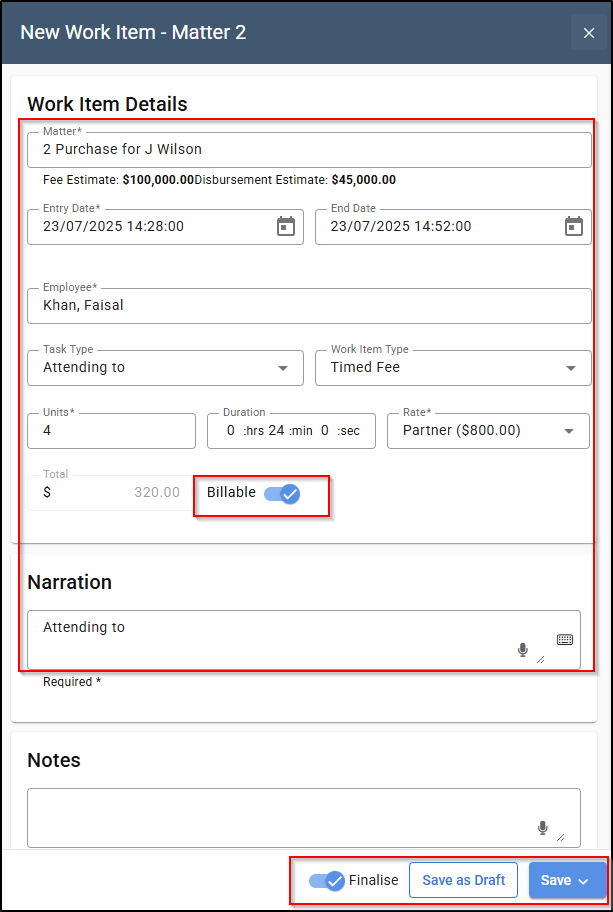
From Time Items tab in the Navigation Menu

2. On the next screen, enter the matter number and adjust the date if needed. Select an activity from the drop-down menu, then choose either a timed fee or an itemised fee. Enter the number of units; the rate will auto-populate based on the fee earner’s rate.
The narration will default to the selected activity, but you can modify it manually or choose from the available time item narration templates.
If the activity is non-billable, toggle off the Billable option. To save the activity as pending, toggle off the Finalise option at the bottom of the screen. Then click Save or Save and Close to record the time item.
From Time Item + in the matter screen
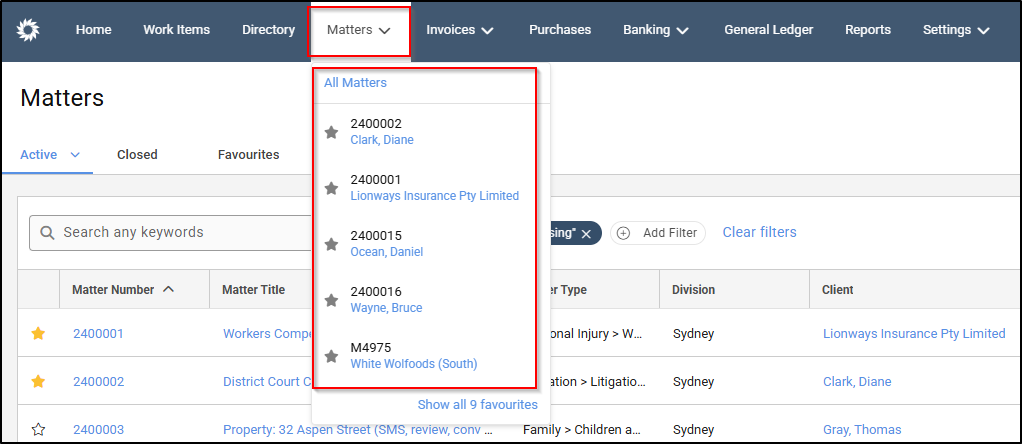
2. On the Matter screen, you can either click on Time Item + or New Time Item to create a time item.

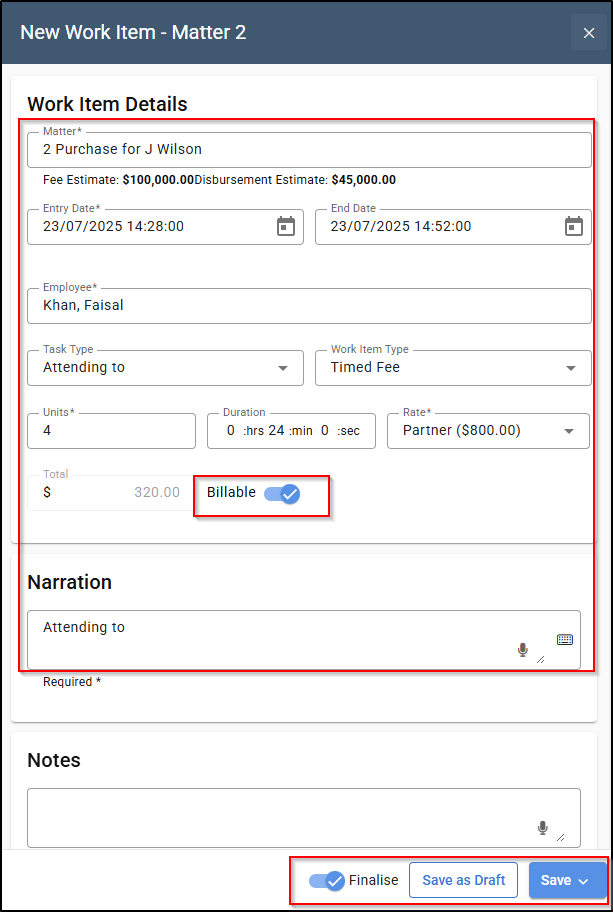
3. On the next screen, the matter number will populate automatically, as the time item is being created from within the matter. Adjust the date if necessary, then select an activity from the drop-down menu — this will automatically populate the rate based on the fee earner.
Choose between a timed fee or an itemised fee, and enter the number of units in the Units field. If you'd like to change the default narration, you can manually enter a new one.
To mark the item as non-billable, toggle the Billable switch. To save the item as a pending time item (which you can edit later), toggle off the Finalise option at the bottom of the screen. Finally, click Save or Save and Close to save the work item.
Edit time item
If a time item is saved as pending, it can be edited at any time. Alternatively, a finalised time item can be unfinalised to allow for further edits.
Editing a pending time item
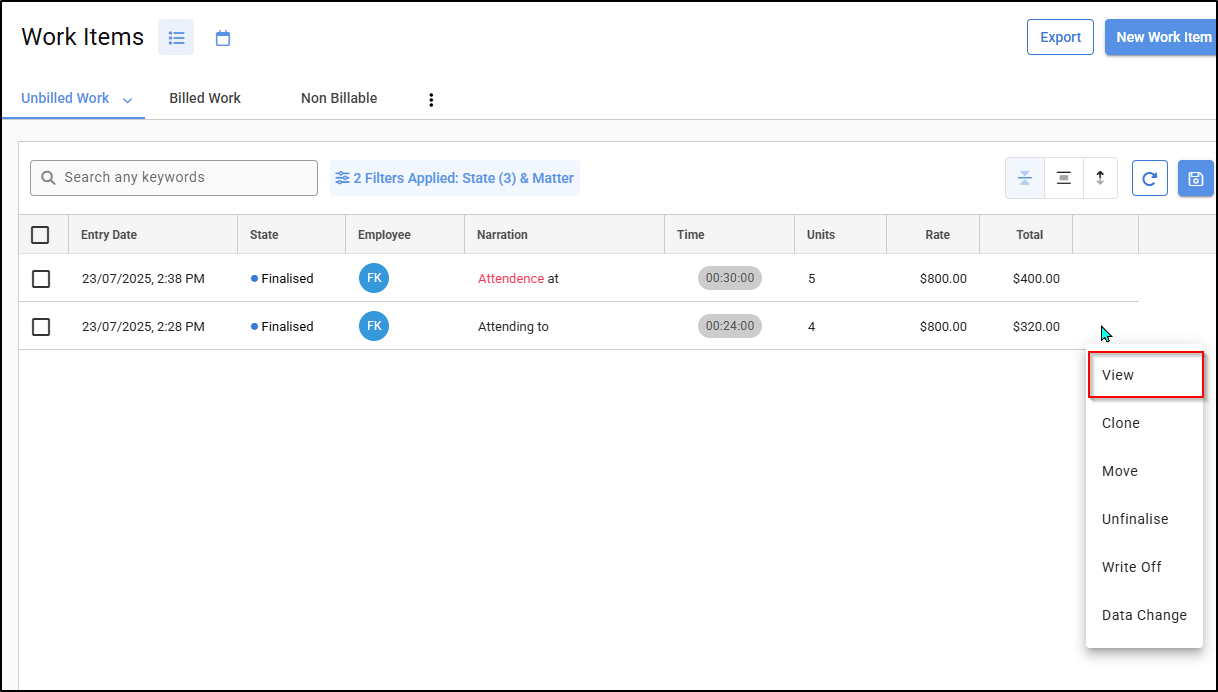
1. Click on the three dots to the right of the pending time item that you want to edit and click on View.

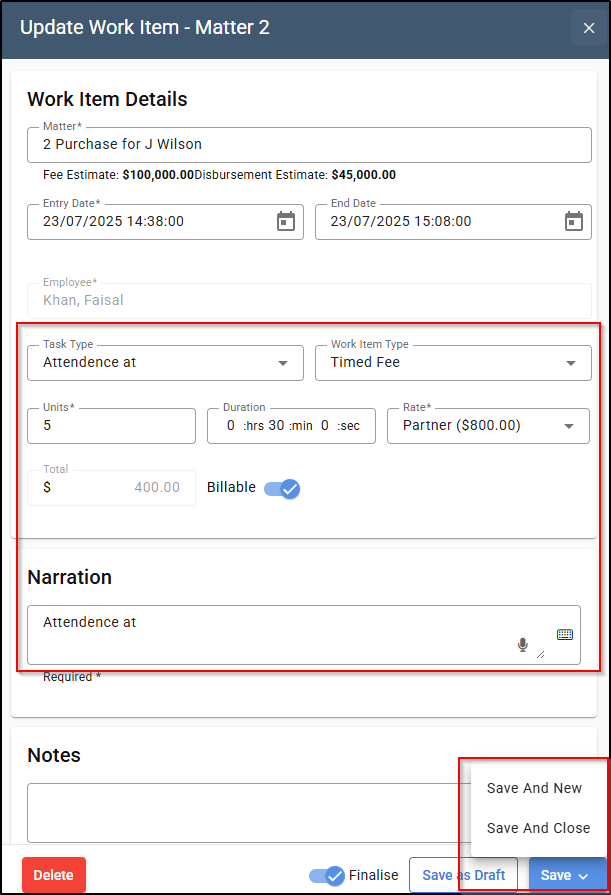
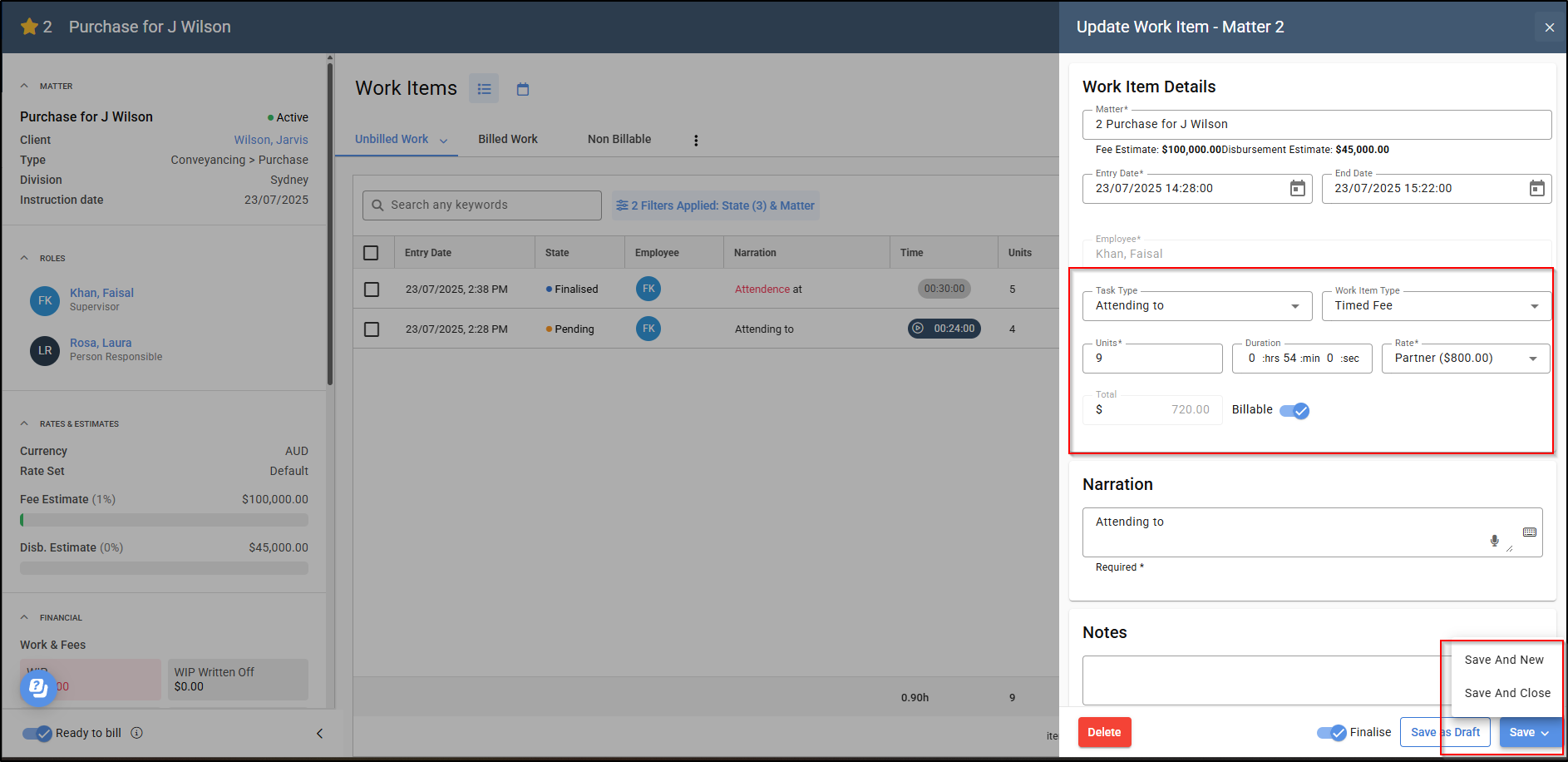
2. On the next screen, you can update the activity, time item type, units, and narration. You can also mark the item as billable or non-billable by toggling the switch.
Once all changes are complete, use the toggle at the bottom of the screen to choose whether to save the item as pending or to finalise it. Then click Save and Save and Close to confirm your changes.
Editing a finalised Time Item
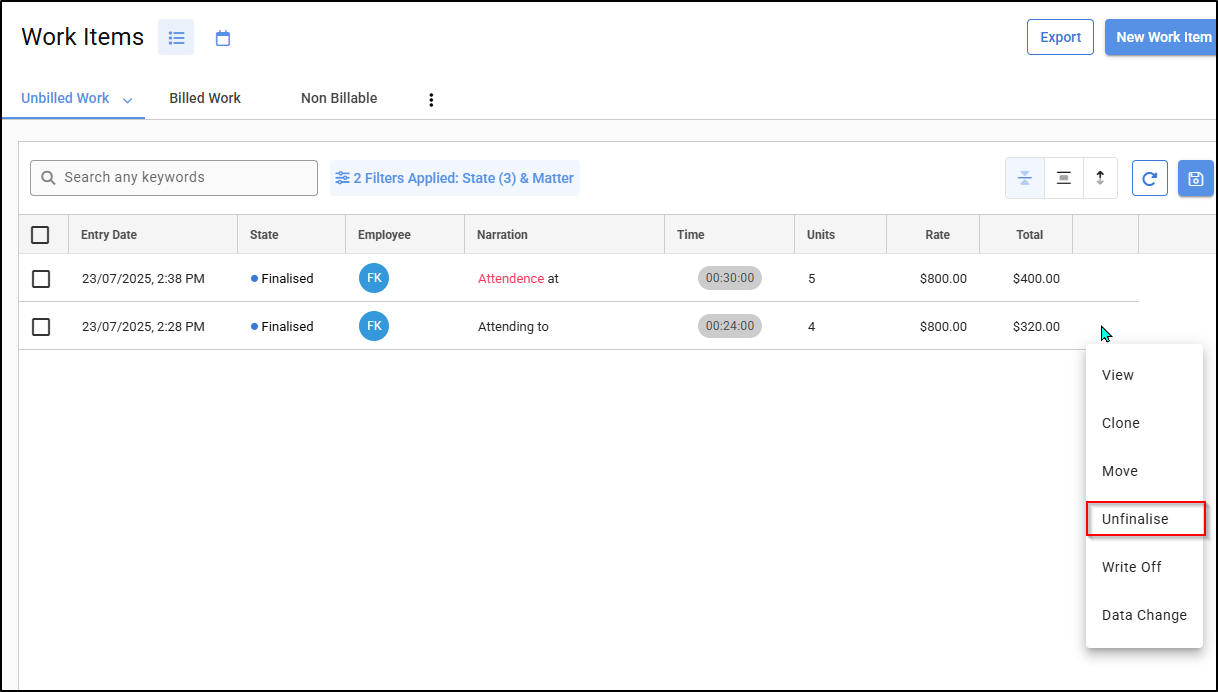
1. Click on the three dots on the right of a finalised time item and select unfinalise.
2. Once unfinalised, select View.
3. Make the changes required, then click on Save and Close.
Write Off a Time Item
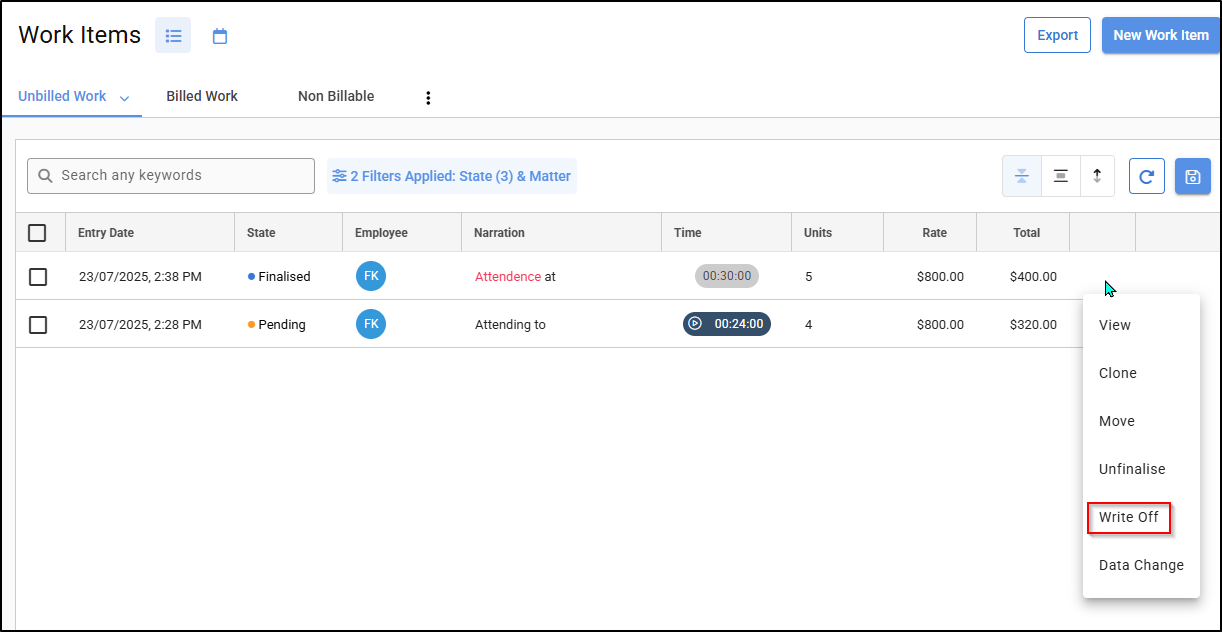
1. To write off a time item, click on the three dots on the right of the time item and click on Write Off.
2. In the next screen, type in a date and select Write Off.

3. The time item will be written off.

( Example of Writing off: Time item dated 26/08/2024 is written of on the 17/10/2024. If the Period Date in Firm Settings is set as 01/09/2024 and the user runs a matter balance report as at 30/09/24, the time item will be shown as written of, even though it was not written off until 17/10/24).